What it does
- Spectrum and waterfall. See 2.4 MHz of the radio band at about 10 frames a second. Tap a signal to tune to it, and step up or down with the keys along the top.
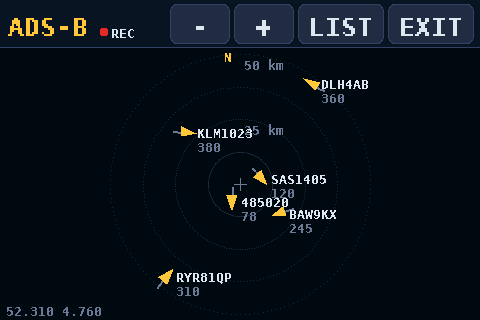
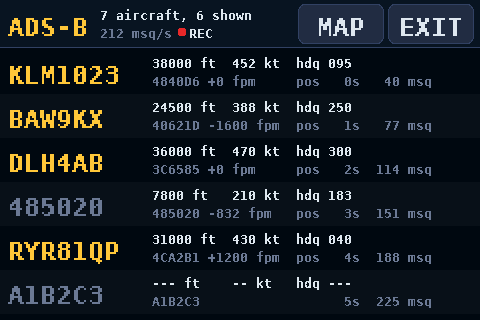
- Aircraft. ADS-B at 1090 MHz shows a list of planes (callsign, altitude, speed, heading, climb) and a map with range rings out to 400 km. Put a map file on a micro-SD card and the map also draws coastlines, roads, runways, towns and airports.
- Wi-Fi scanner. It lists nearby 2.4 GHz networks, strongest first, with a channel view that shows how crowded each channel is.
- Bluetooth scanner. It lists nearby BLE devices with their name or maker, signal strength and how often they advertise.
- Logging. With a micro-SD card in, every plane, network and device it hears goes into a CSV file you can open in a spreadsheet. A red REC dot shows when it's recording.
- Four looks. Studio, PortaPack, Phosphor (green CRT) and Vintage (walnut and amber).
- Receiver
- 2.4 MHz of spectrum and waterfall, about 10 fps
- ADS-B
- Aircraft list and map, rings to 400 km
- Scanners
- 2.4 GHz Wi-Fi and BLE on the kit's ESP32-C6
- Logging
- CSV files on the micro-SD card
- Licence
- GPL-3.0
What you need
- The Waveshare ESP32-P4-Module-DEV-KIT and the 3.5inch RPi Display (MPI3501). Not sure about the screen? See Is this my screen?
- An RTL-SDR Blog V4 dongle and an antenna. A 1090 MHz antenna is best for aircraft. The V4 is the only dongle tested so far.
- Optionally, a FAT32 micro-SD card, for the map and the logs.
- A USB-C data cable. Some cables only charge.
- Chrome or Edge on a computer. The Flash page uses Web Serial, which Safari, Firefox and phones don't have.
Flash it from your browser
- Plug the screen onto the kit's 40-pin header, pin 1 to pin 1 (the square pad at the 3V3 end).
- Connect the kit's USB TO UART Type-C port to your computer.
- Click Flash P4 SDR, then Connect ESP32. The Flash page reads your chip's revision and picks the matching image:
-rev1for v1.x (early kits),-rev3for v3.1 or later. It checks the image's SHA-256 before writing it. - Set the H3 jumper to HOST and plug the dongle into one of the kit's USB-A ports.
Flashing clears the touch calibration saved on the board. On first boot you tap five targets to set it up again. If flashing fails with the screen fitted, unplug the screen to flash (GPIO36 is a strapping pin) or use the kit's USB-Serial-JTAG port.
Rather use a terminal? The README has the esptool.py commands.
On first boot it runs the touch calibration, then looks for the dongle, checks the USB link for 1.5 seconds and starts the receiver at 100.0 MHz, in the FM band. After that it starts where you left it.
Using it
Along the top of the receiver:
-1M-100k+100k+1Mstep the frequency. Hold one to repeat.- The frequency readout switches to the next look.
MENU(the gain is shown under it) opens the menu.- Tap the spectrum or waterfall to tune to the spot where you lift your finger.
The menu is eight big tiles:
- Gain
- Steps through every tuner gain, or picks AGC, 15, 30 or MAX.
- Range
- Auto, or set the top level and the span in 5 dB steps.
- Zoom
- Shows 2.4 MHz, 1.2 MHz, 600 kHz or 300 kHz of the band.
- Filter
- 200k, 25k, 12.5k or 8k. For now it only shades the passband; there's no audio yet.
- Band
- Jumps to FM, AIR, MARINE, NOAA, 2M, PMR, 70CM or ADS-B.
- Scan
- Opens the Wi-Fi or BLE scanner.
- Look
- Studio, PortaPack, Phosphor or Vintage.
- Done
- Back to the radio.
ADS-B, Wi-Fi and BLE each take over the whole screen and pause the receiver. EXIT starts it again. The README has the details.
The receiver
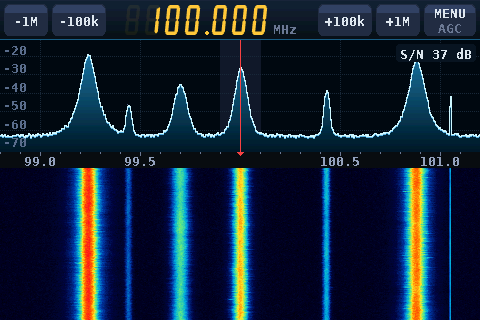
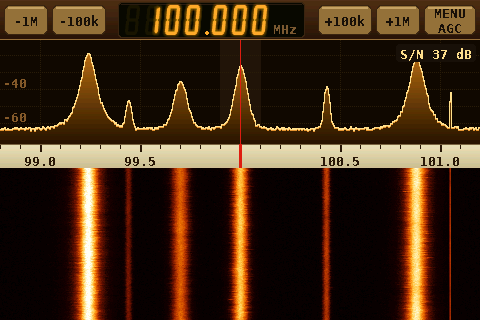
The screenshots on this page are renders from the repo's preview tool, with made-up aircraft.
The aircraft map
Planes show up on the map and in the list as soon as their ADS-B messages come in. The map works without a card: aircraft, range rings and the compass. For coastlines, roads, runways, towns and airports, it reads a MAP.BIN file from the micro-SD card. You make that file on a computer with the repo's map tool, centred near your antenna:
python3 tools/mapgen/make_map.py --place "Your town" --out /Volumes/SDCARD/MAP.BINIt builds the map from Natural Earth data, with OpenStreetMap detail close in, and needs nothing but Python. Copy MAP.BIN to the root of a FAT32 card and put the card in the kit's slot. The README covers the options.
Logs
With a FAT32 card in, each mode writes a CSV file to LOGS/ on the card while it's open, and the header shows a red REC dot. Every power-on starts a new set of files.
| File | One row |
|---|---|
| ADSBnnnn.CSV | An aircraft, at most every 5 s, when it's been heard since its last row |
| WIFInnnn.CSV | A network heard in a sweep (about every 2 s) |
| BLEnnnn.CSV | A device heard in the last 5 s |
The kit has no clock, so times are seconds since power-on. The README lists every column.
Status and limits
- No audio yet. Filter only shades the passband. Listening to FM and AM is on the list.
- Tested on a v1.0 kit with the RTL-SDR Blog V4. In one long run, 44 minutes of aircraft tracking with logging on lost no data.
- The rev3 image is built from the same source but hasn't run on a v3 chip yet. If you have one, reports are welcome in issue #3.
- Wi-Fi scanning is 2.4 GHz only: the C6 has no 5 GHz radio.
Credits
Firmware by John O'Dell, John-ODell/esp32-p4-rtl-sdr, GPL-3.0. It uses librtlsdr from the RTL-SDR Blog fork (GPL-2.0-or-later), and Espressif's ESP-IDF and esp_hosted (Apache-2.0). The map tool uses Natural Earth (public domain) and OpenStreetMap data (© OpenStreetMap contributors, ODbL). The full list is in its THIRD_PARTY.md. The screenshots are from the repo, and the drawing on the Builds list is the site's own.